Use the Annual Rollforward Utility to roll financials forward to the next year.
NOTE: Data is automatically saved as you move through the utility. To start over, refresh the utility by pressing the F5 key. Be aware that you will lose all of your previous selections when you refresh.
Configure roll forward
-
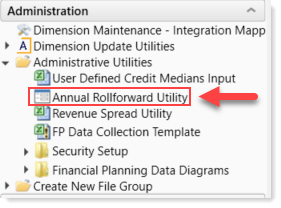
Select the Annual Rollforward Utility in the Fin Plan Admin task pane, under the Administrative Utilities area of the Administration section.
-
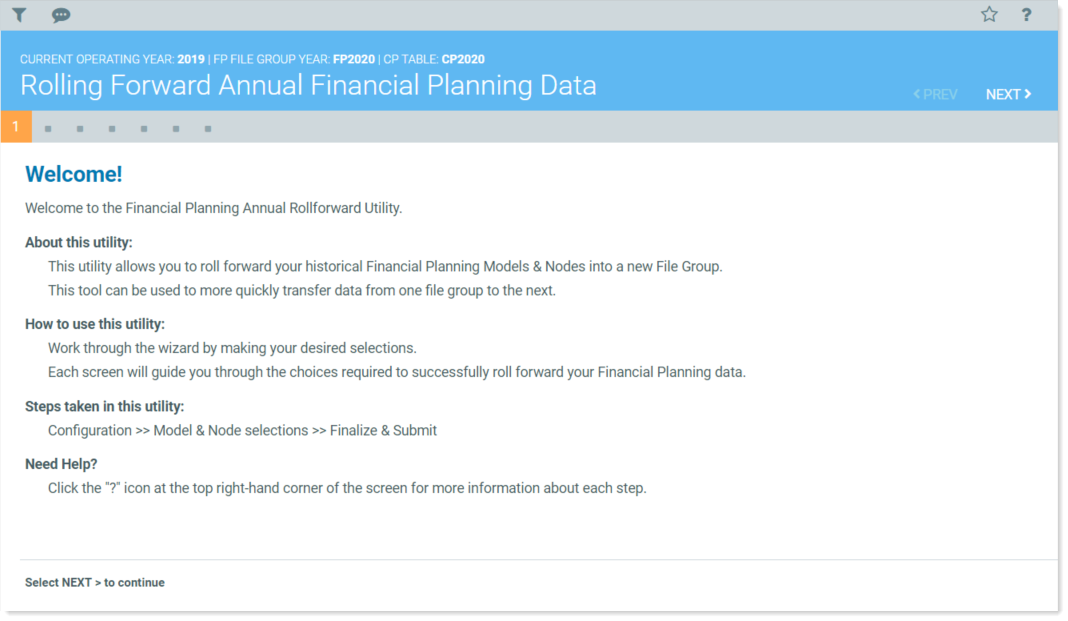
Review the instructions on the first page of the utility, and click NEXT in the upper right of the page.
-
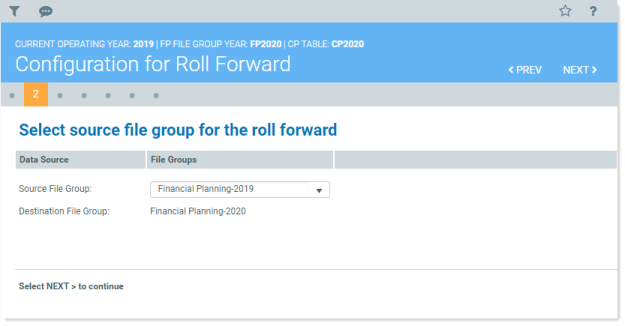
Select a Source File Group from the dropdown list. This is the file group that contains the nodes and data you intend to roll forward. The year you select becomes the first forecast year of the current model. The default source file group is your Current Year.
-
Confirm the Destination File group is where your data will go. The default destination file group is your Next Year
- Click NEXT.
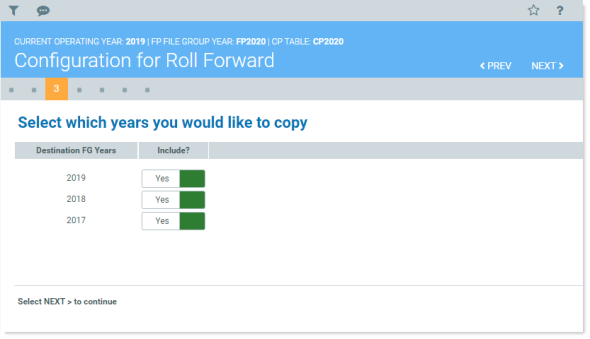
- Select the years that contain the data to be rolled forward. Review the Destination FG Years and either:
Leave the toggles set to Yes to include the data
Click the toggle to No to exclude a year
- Click NEXT.
-
Review your selections on the Configuration Summary page.
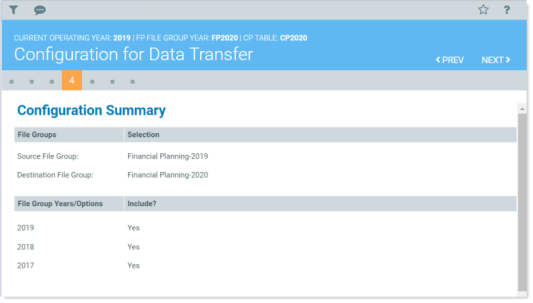
If they are not correct, use the PREV button or click the desired page button to return to your selections and make changes.
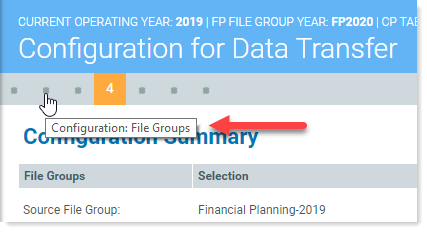
TIP: Hover your cursor over a button to see the name of the page it accesses.
-
Click NEXT to Select models and configure options.
